“The best camera is the one you have with you” is an old adage in photography, and there’s a lot of truth to it. Even as someone who has at least five cameras at home, I capture more photos with my smartphone than I do anything else. Smartphone cameras have been so good for so long now that it really doesn’t feel like a tradeoff. My DSLR definitely doesn’t have a wide-angle and an 8x telephoto lens built in.
But capturing photos is just the first half of creating a good image. To really make great photos, you also need to edit them. The good news is that the best photo editing device is often the one you have with you as well. There are a number of excellent photo editing apps for iPhone and Android that are as powerful and effective as any desktop or web app.
I’ve been shooting photos for over half my life and writing about (and teaching) photography for more than a decade. And even as someone who loves the slow, deliberate work of taking a film photo or hiking somewhere to capture a landscape at sunrise, most of the time, I use my phone. For this article, I tested more than 30 of the top iPhone and Android photo editors—and these are the five best.
The best photo editors for iPhone and Android
What makes the best photo editing app for iPhone or Android?
While making basic edits to a photo can have a transformative effect, it isn’t a hard or complicated problem for developers to solve. That’s why there are so many photo editing apps out there that all work relatively well. Even the scammiest, most ad-filled app can be used to make a photo look a little brighter and sharper (though the user experience will be terrible, and you’ll probably be left with a big watermark over your photo).
While the truly awful apps are easy to avoid, the bigger problem with this situation is that there are a lot of mediocre photo editing apps out there that rely more on aggressive marketing and a high monthly subscription to stay in business, rather than because they’re the best tool for the job. If you use one of these apps, you’ll almost certainly be happy with it because your photos will look better, but you’ll be overpaying for tools you can get for free from apps that are nicer to use.
The good news for me, though, is I get to set the bar really high for what apps I include on this list. To get featured, each mobile editing app had to:
-
Have powerful editing features. You need to be able to adjust the exposure, contrast, color, and crop of your image at the very least, and ideally more. Most of these editing apps offer advanced tools like curves, HSL, and local adjustments, though not always as part of the free plan. While not strictly necessary for inclusion on this list, every app that doesn’t come pre-installed on your phone has them.
-
Be easy to use. A good photo editing app gets out of the way and lets you work on your photo. Even the most powerful apps have to offer a nice, intuitive workflow. Yes, the more advanced apps have a bit more of a learning curve, but every app on this list is suitable for photographers of any level.
-
Provide repeatable results. When you’re editing your images, you often want to be able to make similar adjustments to multiple images. There are a few ways this can happen, and I expected more from the more professional and expensive apps. The best is that you’re able to save edits as your own preset that you can apply to any image, but copying and pasting settings between images or reapplying the previous set of edits can work too. Even a set of high-quality filters and easy-to-understand tools works in a pinch.
-
Be appropriately priced with no ads and minimal nagging to upgrade. You don’t need an expensive subscription to an app to make simple edits to your images, nor do you have to use a free app that’s filled with ads or constantly hassles you to upgrade. Many of the best tools are completely free, so where an app does charge a subscription, there needs to be a serious reason to use it.
For this list, I was only considering photo editors. This means design apps like Canva, all the Canva alternatives out there, any of the million collage makers available, or even image organizers weren’t included. While some of them allow you to edit images, it’s generally more awkward than using a specific photo editor and then importing your edited image into your design app of choice.
Similarly, social networks with built-in editors, like Instagram and Snapchat, weren’t in consideration. While those editors are probably the most common way that people actually edit images, they don’t have the same flexibility as dedicated apps. If you’re sharing a quick social post, they’re more than good enough—but if you want to take the time to make an image you could print, one of the apps on this list will be better.
Over the past few years, there’s also been a massive rise in AI-powered apps. Most of these use the same combination of Nano Banana and GPT-Image as their backend, and have an expensive credit-based system. None of these apps made the list because they mostly fall short as image editors. On the whole, the apps already on this list have done a much better job of adding AI features.
To test any of the apps that looked like they might meet the criteria, I did the obvious thing: I imported a few images and got to editing. I’ve been using apps like these since the iPhone 3GS, so in many cases, it quickly became apparent that certain apps weren’t up to snuff. If I saw one full-screen ad for SHEIN, I wasn’t tapping any further. Of the 30-something apps I considered, these five were the clear winners. If you’re at all into photography, the names probably won’t surprise you. There hasn’t been a big shakeup in the best image editors in a while: the leading apps are better at adding AI features than new apps are at disrupting things.
The best mobile photo editing apps at a glance
|
Best for |
Pricing |
|
|---|---|---|
|
Adobe Photoshop Lightroom |
Professional photo editing |
Free version available; from $6.99/month |
|
Snapseed |
Free and powerful photo editing |
Free |
|
VSCO |
Filter-based photo editing |
From $7.99/month ($29.99/year) |
|
Apple Photos |
iPhone |
Free and included with your iPhone |
|
Google Photos |
Android |
Free and included with your Android |
Best professional mobile photo editing app
Adobe Photoshop Lightroom (iOS, Android)

Adobe Photoshop Lightroom pros:
Adobe Photoshop Lightroom cons:
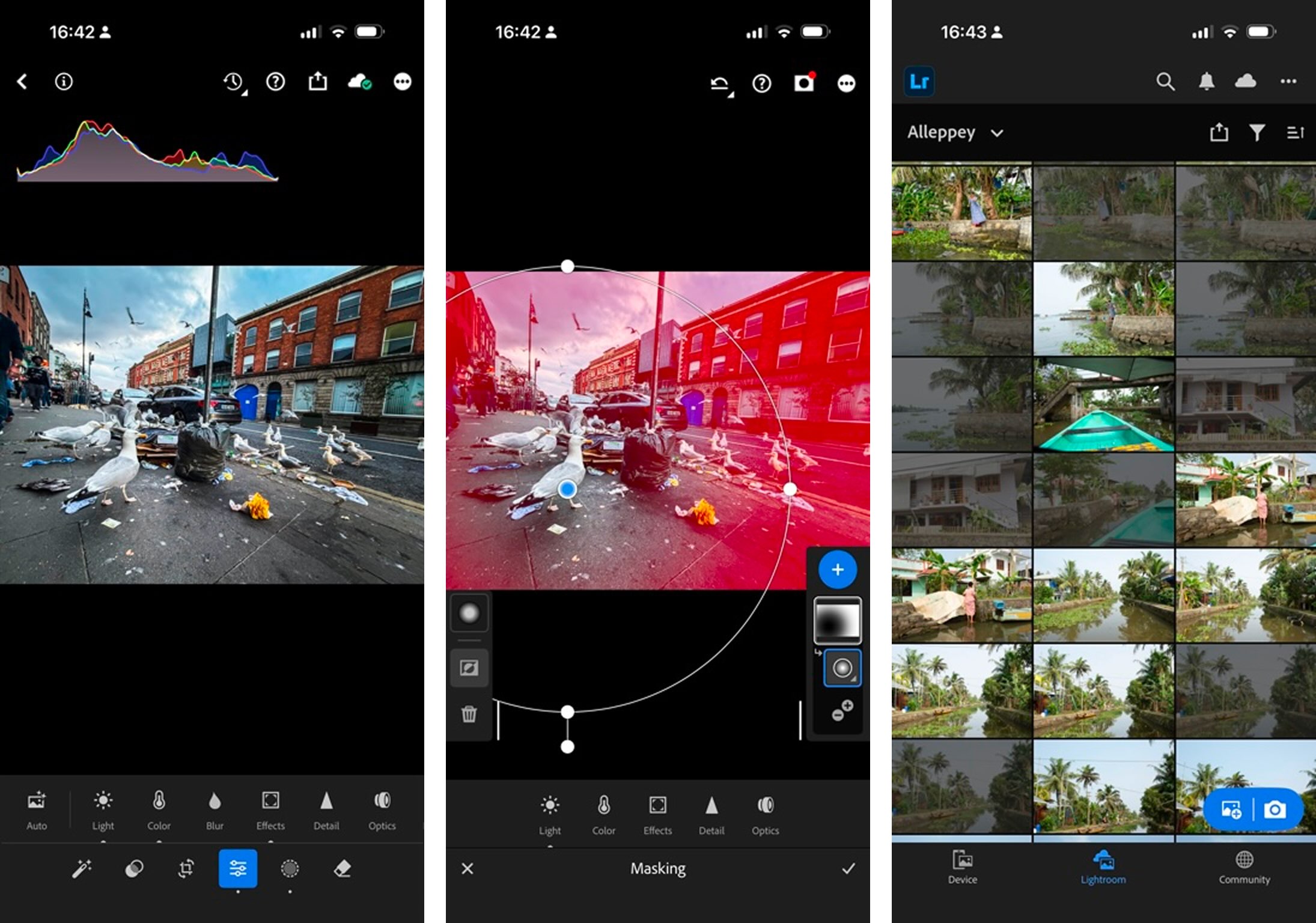
Adobe Photoshop Lightroom is the gold-standard photo editing app on every platform—including iOS and Android. While aimed at professional and hobbyist photographers, it’s entirely suitable for editing any kind of image you shoot on your smartphone.
Lightroom packs a lot into a surprisingly usable app. It’s one of the best photo catalog apps, so you can use it to sort and organize your images (or even back them up to Adobe’s cloud storage), but it’s the image editing features I’m here to talk about.
All the basic tools you need to edit your images are included for free, including things like curves and the ability to save your own presets. You can tweak exposure, color, contrast, crop, and everything else. The auto adjust feature is powerful and accurate—I frequently use it as a baseline when I’m editing my own images.
Lightroom Premium adds features like local adjustments and masking, a powerful healing tool, and more presets, as well as an increasing number of the AI features, like Generative Remove. There are now AI-powered Quick Actions that detect the subject, background, and other elements and details of your image and allow you to enhance them with a slider. It also suggests the most appropriate presets.
Lightroom is available as part of a few different Creative Cloud plans that also include Adobe Photoshop, the desktop versions of Lightroom, and various amounts of cloud storage. The cheapest option is to upgrade through your smartphone for $6.99/month: this gets you Lightroom Premium on your smartphone and 100GB of cloud storage. For $11.99/month (with an annual contract), the Lightroom 1TB plan adds Lightroom on the web and desktop, as well as 1TB of cloud storage.
The biggest downside is that Lightroom assumes you have a certain familiarity with photography. If terms like “exposure” are gibberish to you, there will be a bit of a learning curve. The tutorials are solid, and the app is legitimately nice to use, but be prepared to spend a few minutes working through things.
If you go with Lightroom, you can automate your photo editing workflows using Lightroom’s Zapier integration and connect it to all the other apps you use. You can automatically apply presents or Auto Tone, convert files into different formats, or check the status of jobs.
Adobe Photoshop Lightroom price: From $6.99/month for the Lightroom Premium 100GB plan with 100GB of cloud storage.
Darkroom is a good alternative for iOS users, and it’s a bit cheaper, though it doesn’t have Adobe’s deep ecosystem.
Best free image editing app for iPhone and Android
Snapseed (iOS, Android)

Snapseed pros:
Snapseed cons:
Snapseed was one of the first truly great mobile photo editing apps. It was so good that Google bought it to get the dev team and technology behind it. For a few years, Snapseed languished with no real updates; it felt like it wasn’t a priority for Google. Then, bam! Snapseed 4.0 dropped in 2026. While it still doesn’t have much in the way of AI features, the user interface has been overhauled, and it’s still the same great image editor it’s always been.
Snapseed packs in all the basic tools, as well as some decent filters, and a great selective adjustment system. Called U Points, these allow you to adjust the brightness and color levels of different areas of your image in a few quick taps. These kinds of local adjustments are normally locked behind paid plans, so it’s a compelling choice that has a bit less of a learning curve than Lightroom.
Snapseed used to fall short on repeatability, but Snapseed 4.0 allows you to save a set of edits as a Look. That means you can reapply them to other images, and even batch-process them. It’s great to see Snapseed getting a few much-needed overhauls—it’s enough for it to keep its reputation as a free, powerful, easy-to-use mobile image editor.
Snapseed pricing: Free
Best filter-based photo editing app for iPhone and Android
VSCO (iOS, Android)

VSCO pros:
VSCO cons:
While the Instagram-fueled popularity of heavily filtered images has faded somewhat since its peak in the mid-2010s, filters are still a powerful way to consistently give your images a cohesive look. And the best of the filter apps is VSCO.
The company behind VSCO started out creating Lightroom presets that emulated film stock, and eventually took that same knowledge and built a really powerful, filter-forward photo editor. Unlike a lot of filter-based apps, all of the hundreds of presets in VSCO feel considered, and you can find the thought process behind them on the company’s blog. The filters are also smartly grouped into packs of related presets, all with similar names. For example, the eight color grade presets are named CG1 through CG8, while KP1 through KP9 are all different emulations of Kodak Portra, a popular film stock.
Not every preset will work for every image, but it’s easy to find (and save) a few favorites, or work from the suggestions VSCO offers.
In addition to being able to add filters, VSCO has all the regular image editing tools you’d like, and a couple of pro touches, like dodging and burning (selectively darkening or brightening areas of your image) and split toning (where you add different colors to the shadows and highlights). The iOS app now has an AI Lab that’s powered by FLUX, where you can edit images with prompts. It works, and it’s included on a Pro plan, but I don’t think it’s a substantial upgrade to the regular editing tools.
VSCO has a few social features tacked on, but to be honest, you can safely ignore them. I’ve been doing so for around a decade.
Really, the only downsides with VSCO are that the number of filters can be a bit overwhelming, so it can take time to get used to navigating them, and the free plan is pretty weak (you only get 15 filters and very basic editing tools). Still, at $29.99/year, VSCO is a strong choice if you want the best of the film/filter aesthetic—I happily pay it. At $7.99/month, it’s a lot harder to recommend, so check out the free trial to see what you think, and don’t forget to unsubscribe if it’s not for you.
VSCO pricing: From $7.99/month ($29.99/year) for Plus with most filters and features; from $59.99/year for Pro, which adds a desktop app, AI Lab, and a handful of extra presets.
Best free photo editing app for iPhone
Apple Photos (iOS)

Apple Photos pros:
Apple Photos cons:
Apple Photos doesn’t have the most powerful photo editor out there, but it’s free and right there in your camera roll. If you’re just looking to make a few quick tweaks to a photo you just took, “Edit” is one tap away.
The auto adjust works well, and all the basic—and some not-so-basic—editing tools are included. You can tweak the exposure, brilliance, highlights, shadows, contrast, brightness, back point, saturation, vibrancy, warmth, tint, sharpness, definition, noise reduction, and vignette through an intuitive slider system. The included Photo Styles are solid, and you can even copy and paste edits between images—Photos will adapt the white balance and exposure to create a better match. There’s also an AI Clean Up tool that’s as good as the ones in most paid apps.
While hardly the most exciting choice, I’d be lying if I didn’t admit that I use Photos all the time to make quick edits. Unless you know you want a more powerful app or some specific features, there isn’t a lot of reason to look elsewhere—especially if elsewhere is a free app that includes ads and a bad interface.
Apple Photos pricing: Free and included with your iPhone
Best free photo editing app for Android
Google Photos (iOS, Android)

Google Photos pros:
-
Great AI-powered features
-
Integrated with the rest of the Photos app
-
Free and included with your phone
Google Photos cons:
While Google Photos is available on both iOS and Android, it’s the more compelling choice on Google’s own smartphone platform simply because it comes pre-installed. Once again, as soon as you take a photo, “Edit” is just one tap away.
Google continues to go all in on AI with features like Reimagine and Magic Eraser. They allow you to edit your image with a prompt, or remove distractions and unwanted elements. They’re cool, but you don’t need them to edit your images.
Otherwise, Google Photos’ more typical image editing features are still solid. It lets you make all sorts of tweaks: brightness, contrast, white point, highlights, shadows, black point, saturation, warmth, tint, skin tone, blue tone, pop, sharpen, and denoise. The auto-enhance is very good, and there’s a healthy selection of different filters.
If you want something more powerful or without the AI-pivot, check out one of the other apps on this list. But if you have an Android phone and just need an app to adjust a photo or two, don’t look any further than Google Photos.
Pricing: Free and included with your Android
Which Android or iPhone photo editing app should I use?
You can get good results with almost any photo editor, but some do make the process a lot easier.
Apple Photos and Google Photos are great for quick edits straight from your camera roll. Snapseed is a solid totally free choice, though Lightroom is the gold standard and well worth learning to use if you’re serious about taking great photos. Otherwise, VSCO is a touch more expensive for what you get, but stands out for how well it implements filters and AI.
AI-powered features are cropping up in every app. Lightroom, Google Photos, and VSCO all make a big deal about being AI-powered (at least in some aspects) and all pull it off. While the features can be more or less useful depending on your needs, they’re all fairly priced or included in your existing plan. There’s no reason to use a bad app with good marketing.
Related reading:
This article was originally published in November 2023. The most recent update was in July 2026.